How to remove the background from an image for free, with no watermark and no upload
Published October 11, 2026 · 8 min read
In this article10 sections
- How to remove a photo background with Imagyc
- What does “without uploading the photo” mean?
- Why can the first photo take longer?
- Have several images?
- Free results with no added watermark
- A cutout, not a redraw
- Transparent PNG or white-background JPG?
- How to get a better cutout
- Prepare the result for your website
- Frequently asked questions
You need a product photo for a catalog, a cutout of a person for an ad or a logo for a new design. The image is ready, but its background gets in the way. You can handle that in your browser without installing an editor or sending the photograph to a server.
With Imagyc, you can remove the background from an image for free, with no sign-up, and download the result without a watermark. Processing happens on your own device. The photo stays in the browser during the cutout rather than being uploaded for cloud processing.
Open the Imagyc background remover to get started. No account is required.
How to remove a photo background with Imagyc
1. Choose the image
Open the tool and choose the image on your device: a product photo, portrait, logo or artwork. You can also drag the file in or paste it with Ctrl+V. The tool opens JPG, PNG, WebP, iPhone HEIC, PDF, PSD and other formats.
Start with the best source you have. A blurred or heavily compressed image makes it harder to distinguish the edges that need to remain.
The cutout takes from a few seconds to about a minute, depending on the device and the image size.
2. Wait for the cutout and compare it with the original
Imagyc identifies the main subject and prepares the version without its background. Check that hair, clothing, handles, edges and small details remain represented.
Use light and dark preview backgrounds to spot remnants of the scene or parts accidentally removed. Zoom helps inspect edges; check the size at which you will use the image in the final design as well.
3. Try another cutout mode if needed
For photos, Imagyc picks one of three cutout modes on its own: person, object or person + object, the last one for someone holding something, such as a product, a bowl or a racket. If the result isn't right, use the buttons under “Not right? Cut out as:”, just below the result. The switch is instant, with no need to process the photo again.
When the background shows through the subject, as between the slats of a chair, through a grid or between the strings of a racket, tick “Also remove the background showing through gaps”. It only removes areas that match the surrounding background color, so light parts of a product or of clothing stay in place.
For logos and drawings on plain backgrounds, the same option removes the background inside shapes. It can help with letter counters and enclosed gaps that still contain the background color.
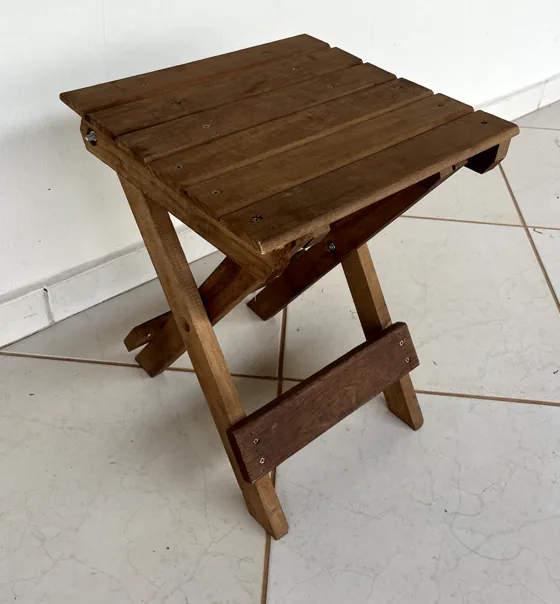
Originalphone photo, HEIC
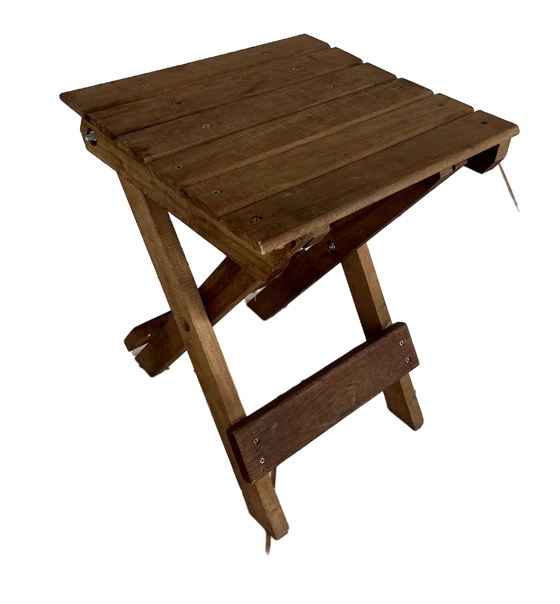
Background removedtransparent PNG · 3024 × 4032 px
On a new backgroundthe same PNG over green
4. Choose your download
| Your goal | Download option |
|---|---|
| Place the person or product over another scene | Transparent PNG |
| Use an image on a white background | JPG with a white background |
PNG can retain transparency. Standard JPEG has no transparency channel, so a JPG needs a background even when the subject has already been cut out.1
In Imagyc, choose “Download transparent PNG” or “Download JPG on white.” Keep the original for future edits and review the result before using it.
What does “without uploading the photo” mean?
Selecting a file on a webpage does not require sending it to a server. Imagyc performs background removal in the browser: the device opens the image, creates the cutout and generates the downloadable file.
This is useful for personal photos, client assets and images of products that have not been released. The photograph's content does not need to reach a remote processing service for this task.
In-browser processing is a real application of on-device AI. ONNX Runtime Web documentation describes running models on a device without sending their input for server inference. That documentation explains the technology; Imagyc's specific behavior is described by its own tool and policy.2
The page can still download components and resources needed to work. The image used for the cutout remains on your device. Site visits and technical access records are a separate matter, covered by the Imagyc Privacy Policy.
Why can the first photo take longer?
On the first use with photographs, the browser may need to download the cutout components. Once stored, they can be reused. Clearing browser data may require another download.
That loading brings the tool to your device; it does not send the photo away. Keep the page open while preparation and processing finish.
Timing varies with connection, image size, browser and device capability. Very large images are scaled down automatically to fit the device's memory, and the tool tells you when that happens.
Have several images?
The background remover works on one image at a time, and every cutout deserves a check. Finish one, download it and drop in the next: the cutout components are already loaded, so the following ones are faster.
For catalog shots, inspect packaging and outlines. For portraits, check hair and accessories. For logos, examine lettering and internal gaps. A result that looks fine in a thumbnail may need another look once placed in the composition.
Free results with no added watermark
Imagyc background removal is free, and the downloaded file does not receive a watermark from the tool. You can move the result into your design without a service badge covering the photo.
That helps keep the focus on the product, person or brand identity. It also simplifies preparation for websites, presentations and ads.
Automatic removal still deserves review. “Free” and “no watermark” describe access and export; visual results depend on the source image.
A cutout, not a redraw
Imagyc separates the subject from the background without redrawing the image: the interior keeps its original pixels, and only the edge gets transparency and a color adjustment so it does not carry the old background's tint.
AI tools that generate images from a prompt often create a new version that looks like the original. On product photos, packaging text or faces, details can change without you noticing. When fidelity matters, check the result zoomed in, whatever tool you use.
Transparent PNG or white-background JPG?
For a composite, download PNG and place the cutout over your chosen color or scene. For a simple product presentation on white, JPG may suit the intended design.
The checkerboard preview helps visualize transparency. It should not become part of the exported pixels. Check by placing the PNG over a colored background: transparent regions should reveal that background.
If the background becomes white after saving or converting, inspect the chosen format. Return to PNG when transparency is required, and check the application opening the file too.
See the image format guide to choose the next export. A white catalog background is a presentation choice; marketplace requirements should be checked for the channel and category where you publish.
How to get a better cutout
Choose a sharp source with a clearly identifiable subject. Before selecting files, check whether the object is fully in frame and whether important parts blend into the surroundings.
Glass, translucent surfaces, very fine details and subjects similar in color to the background need particular attention. Their visual separation can be ambiguous. Compare the cutout with the original instead of accepting the thumbnail alone.
For people, inspect hair strands and accessories. For products, review edges, handles and open areas. For drawings on uniform backgrounds, look for background color left inside letters.
A cutout cannot recover information absent from the photo. If part of the product was outside the frame, choose another source for a faithful presentation.
Prepare the result for your website
After removal, match the publishing version to its purpose. A main photo, a thumbnail and a zoomable image can need different dimensions.
Use the desktop and mobile resolution guide to plan sizes. If you need to reduce the file size or convert it, use the Next step shown below the result: one click takes the PNG to the Imagyc compressor in a new tab, without choosing the file again. WebP and AVIF keep the transparency at a fraction of the size.
Choose a filename identifying the content, such as brown-bag-no-background.png. The image naming guide for SEO explains how to organize exports without relying on names like “final-photo-3.”
Frequently asked questions
How can I remove an image background for free?
Open the Imagyc background remover, select an image, check the cutout and download transparent PNG or JPG on white. No account is needed.
Does the download have a watermark?
No. Imagyc does not add a watermark to the exported result.
Is my photo sent to a server?
Not for the cutout. Processing happens in your browser, as described by the tool and privacy policy. The website can download resources needed to run the task locally.
Can I use it on a phone?
You can open the tool in your phone's browser. Processing time and capacity depend on the device, browser and files. Very large images are scaled down automatically to fit the device's memory.
Why does downloading JPG produce a white background?
Standard JPEG does not retain transparency. Imagyc applies white for that export; choose transparent PNG for placing the subject over another scene.1
Do I need a connection throughout processing?
Initial access and resource downloads need a connection. Once the necessary components have loaded, processing is local. Their availability may change if you close the session, clear cached data or need another component.
Is every automatic cutout perfect?
Review the result. Hair, glass, low contrast and small gaps can require another attempt or a better source photo.
Choose a photo you need to use and remove its background with Imagyc. Then choose the export that fits your next editing step.
Sources 2 references · accessed on October 11, 2026
- MDN Web Docs. Image file type and format guide
- ONNX Runtime. How to add machine learning to your web application with ONNX Runtime