Why optimize images? Faster pages, less data and a better experience
Published October 9, 2026 · updated October 11, 2026 · 7 min read
In this article9 sections
- What changes when you optimize an image?
- Your visitors do not browse under the same conditions
- Smaller files mean less data transferred
- On a store, speed and visual quality need to work together
- Does image optimization help SEO?
- Which image format should you use?
- How to optimize images while keeping important details
- How to check whether optimization worked
- Frequently asked questions
The photo looks sharp, the product is clearly visible and the file opens quickly on your computer. It can still be too large for the page where you plan to use it. The problem often appears elsewhere: on the phone of someone trying to explore your offer, read an article or find an answer.
Image optimization means preparing an image for its actual purpose, reducing unnecessary data while retaining the details visitors need to see. That involves dimensions, compression and format. On a website, it also involves how the file is loaded.
Every image contributes to the experience. A main product photo needs to appear promptly. A thumbnail should be lightweight. A detailed view needs to support a confident buying decision. The right file meets that purpose with an appropriate loading cost.
What changes when you optimize an image?
Start with two separate measurements: dimensions, such as 1,200 × 800 pixels, and file size, such as 180 KB. One describes the number of pixels; the other describes the amount of data being transferred.
Making a picture look smaller in your website editor may only change its display size. Visitors might still download the oversized original. Avoiding that waste requires changing the file or how it is delivered.
| Adjustment | What it changes | Typical use |
|---|---|---|
| Resizing | The number of pixels | Creating a smaller thumbnail version |
| Compression | The data needed to represent the image | Reducing a photo's file size while retaining useful detail |
| Conversion | The file format | Comparing JPEG, WebP and AVIF versions |
| Loading behavior | How the page delivers images | Prioritizing the main photo and deferring images farther down |
These adjustments work together. Converting an oversized photo can save data without making its excessive dimensions necessary.
Your visitors do not browse under the same conditions
You may build the page using a fast home connection and a powerful computer. A visitor could be on a train, using shared Wi-Fi or dealing with an unstable mobile signal. Even a connection advertised as fast can be congested at a particular moment.
The device matters too. After downloading an image, the browser has to decode it for display. An excessive number of pixels can add processing work even when the compressed file seems small.1
Check the page on a real phone, especially on a first visit before the files are cached. Repeated visits from your own device can hide problems that affect new visitors.
Smaller files mean less data transferred
Consider a product listing with eight photographs. In this hypothetical example, each original is 1.5 MB and each optimized version is 180 KB:
| Version | Size per photo | Total for eight photos |
|---|---|---|
| Originals | 1.5 MB | 12 MB |
| Optimized files | 180 KB | 1.44 MB |
That is an 88% reduction in image data. Across 10,000 complete downloads, it would mean approximately 120 GB versus 14.4 GB before caching. This calculation uses decimal units and excludes the page's other resources.
Less data helps people with limited mobile plans and reduces the volume your site delivers. There is also less competition between photos and other files using the same connection.
Any hosting cost savings depend on your plan, caching and infrastructure. An 88% reduction in image bytes does not mean the entire page loads 88% faster: server response, scripts and other resources still matter.
On a store, speed and visual quality need to work together
A product image answers practical questions. What does the fabric look like? How is the item finished? Is this the color I want? Can I inspect the details when I zoom in?
A slow-loading photo can interrupt that assessment. So can a heavily compressed image that hides useful detail. If you pay for traffic, the click has already happened; the page needs to let the visitor understand the offer.
A documented A/B test at Vodafone reported 31% better LCP and 8% more sales after performance changes that included image work. Those results belong to that experiment; they do not isolate image compression or predict another store's outcome.2
For your business, treat a commercial improvement as something to test. Compare page visits, funnel progress and purchases under similar conditions. Changes in audiences, campaigns or offers can affect those numbers at the same time.
Does image optimization help SEO?
Google uses Core Web Vitals in its ranking systems, but good scores do not guarantee top positions. Relevant, useful content remains essential.3
Images are particularly relevant to LCP, which concerns the appearance of the largest visible content, and CLS, which measures unexpected layout shifts. Smaller downloads can help the former; reserving image space helps the latter.4, 5
Current good thresholds are LCP at or below 2.5 seconds, CLS at or below 0.1, and INP at or below 200 milliseconds, assessed at the 75th percentile separately for mobile and desktop. INP concerns interaction responsiveness; compressing photos does not fix it by itself.6
Image context matters as well: descriptive filenames, relevant surrounding text and a setup that lets Google discover the file. File size is one part of that work. Read how to name images for SEO for a closer look.7
Which image format should you use?
Start with the content. JPEG is useful for photos without transparency; PNG suits content requiring preserved pixels or transparency; WebP and AVIF are worth comparing for smaller files; SVG typically suits vector drawings, logos and icons.8
Compare outputs at similar visual quality. The smallest file is not the best choice if it removes product texture or makes lettering hard to read.
The guide to JPEG, PNG, WebP, AVIF and JXL image formats explores features and compatibility. For logos, see how to convert PNG to SVG. Vectorization is a different process and does not make every photograph more efficient.
How to optimize images while keeping important details
1. Keep the original and identify the purpose
Save a copy for future edits. Decide whether this is a thumbnail, banner, product photo or print asset. A web-ready export does not need to replace your working file.
2. Match dimensions to the display area
Consider layout width and screen density. An image displayed at 400 CSS pixels wide may benefit from an 800-pixel file on a 2x screen. A website can offer candidates for different display spaces using srcset and sizes.9
The desktop and mobile image resolution guide helps you choose sizes without treating suggested ranges as universal rules.
3. Compare formats and compression
Lossless compression preserves the encoded pixels. Lossy compression discards information to reduce file size. It can retain a satisfactory appearance, but the output needs checking.10
Inspect faces, edges, gradients, small lettering and product details at the display size and at any zoom level offered to customers. A “quality 80” setting is not a universal measure across tools and formats.
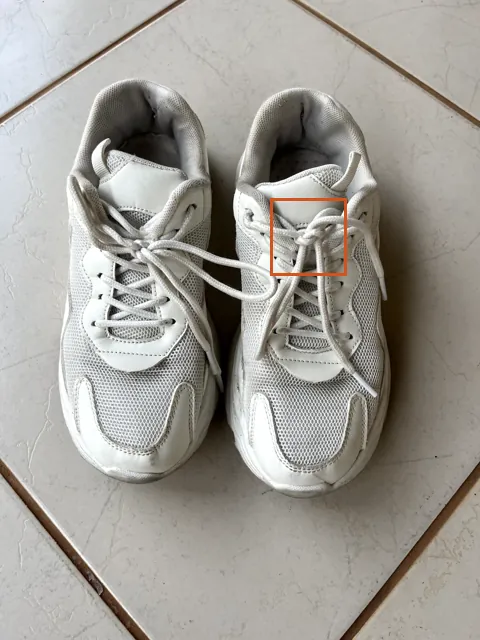
The photothe square marks the zoomed area
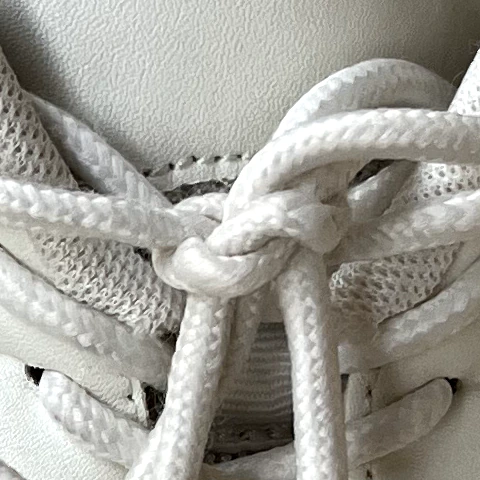
OriginalHEIC · 3024 × 4032 px · 2.95 MB
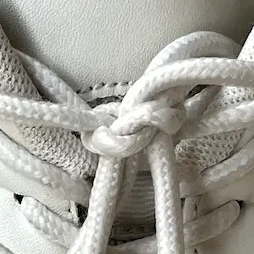
After ImagycWebP · 1600 × 2133 px · 398 KB
4. Check privacy and presentation
Review the information that travels with the export. The image metadata guide explains how file information differs from campaign tracking. Preserve attribution and licensing information where needed; Google documents rights metadata for images.11
On the page, provide alternative text suited to the image's purpose. Informative images need useful descriptions; purely decorative ones can use alt="".12
5. Check how the website delivers the file
The main LCP image should be discoverable early and should not be lazy-loaded. A priority hint can help when applied to the appropriate resource.4 Images farther down the page can use deferred loading to avoid unnecessary early transfers.13
Specify dimensions with the correct aspect ratio to reserve layout space. That helps stop photos from pushing text around when they appear.5
How to check whether optimization worked
Compare the files, then test the published page. Use PageSpeed Insights and check mobile and desktop. To investigate file by file, see how to find the images slowing down your website. It combines lab tests with real-user data when available; the latter covers a rolling 28-day window.14
Ask three questions: are the details still useful? Does the page transfer less data? Does important content appear more effectively under your visitors' browsing conditions?
A small change in the overall score does not cancel out data savings. Likewise, a high score does not replace checking the photo on a phone or demonstrate a sales increase.
Frequently asked questions
Should I optimize an image that is already WebP?
It is worth checking. The dimensions or export settings may still be unsuitable. If the file is already well optimized, there may be little room for improvement. Compare before replacing it.
Is there an ideal file size for every image?
No single limit works for thumbnails, banners and zoomable product photos. Set targets by purpose and consider the total page weight, not just one file.
Are compression and resizing the same thing?
No. Resizing changes the number of pixels. Compression changes how the image is stored. You may need both.
Can I reduce an image without losing quality?
Lossless compression can preserve pixels, but savings vary. Lossy compression changes information; the practical question is whether the details you need remain well represented.10
Choose an image you actually use and try optimizing it with Imagyc. Compare file size, sharpness and dimensions before publishing. Processing happens in your browser, without uploading the image to a server. Keep the original too if you need to preserve its metadata.
Sources 14 references · accessed on October 11, 2026
- Google web.dev. Key performance issues
- Google web.dev. Vodafone: A 31% improvement in LCP increased sales by 8%
- Google Search Central. Understanding page experience in Google Search results
- Google web.dev. Optimize Largest Contentful Paint
- Google web.dev. Optimize Cumulative Layout Shift
- Google web.dev. Web Vitals
- Google Search Central. Google image SEO best practices
- MDN Web Docs. Image file type and format guide
- Google web.dev. Serve responsive images
- Google web.dev. Raster images
- Google Search Central. Image license metadata
- W3C Web Accessibility Initiative. Images Tutorial
- Google web.dev. Browser-level image lazy loading
- Google for Developers. About PageSpeed Insights